Ran the install command and nothing happened? That is expected. The Sigrix MCP server is not something you run yourself — your AI client starts it. This guide takes you from nothing installed to a working connection, in the order that avoids the usual errors.
The whole setup is four steps:
- Install uv, which gives you the
uvxcommand. - Create a seller API token on Sigrix.
- Add the server to your AI client.
- Ask it to list your listings.
§ 01 What you are setting up
MCP — the Model Context Protocol — is an open standard that lets an AI app use tools it did not ship with. The app is the client: Claude Code, Claude Desktop or Cursor. A provider of tools is a server: a small program the client starts and talks to.
The Sigrix MCP server, sigrix-mcp, gives your client tools to draft, check and submit Sigrix listings with your own seller token. What it can and cannot do is covered in Publish a Sigrix listing from your editor; the short version is that nothing goes live without a moderator.
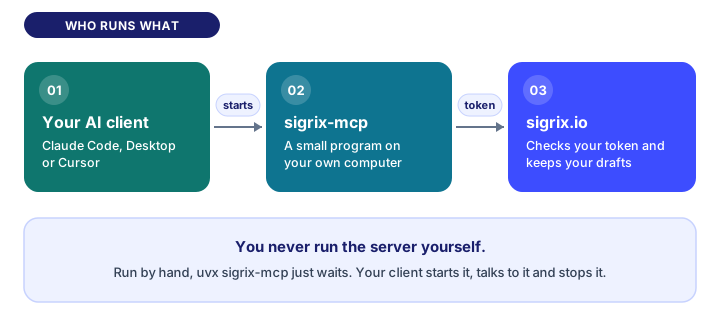
One fact explains most of the confusion: you do not run the server yourself. Your client starts it, talks to it and stops it. Run by hand, uvx sigrix-mcp either prints one line about a missing token and exits, or starts and waits in silence for a client that never arrives. Both are normal. Setup happens in your client, in § 05.
§ 02 Before you start
You need three things:
- A Sigrix account that can sell. The Seller API token card only shows on accounts that can sell. If it is missing, your account is set to buy only — request seller access.
- uv. It provides
uvx, which downloads and runssigrix-mcp. It also fetches Python 3.11 or newer if your machine has none. - An AI client. Claude Code (in a terminal or in VS Code), Claude Desktop, or Cursor.
§ 03 Install uv
On a Mac with Homebrew:
brew install uvOn macOS or Linux without Homebrew:
curl -LsSf https://astral.sh/uv/install.sh | shOn Windows, or for any other method, follow uv's installation guide.
Then open a new terminal window and check that it worked:
uvx --version
which uvx
The second command prints where uvx lives, for example /opt/homebrew/bin/uvx. Keep that path; § 06 shows when you need it. On Windows the second command is where uvx.
§ 04 Create your token
- Open Settings and find Seller API token.
- Choose Create token, then copy the token straight away. It is shown once and starts with
sgx_. - Leave the page open. The same card now shows the exact line for your client with your token already filled in.
§ 05 Connect your client
Pick the client you use.
Claude Code
Claude Code is the claude command. Check that you have it:
claude --versionIf you see command not found: claude, install it once, then open a new terminal:
curl -fsSL https://claude.ai/install.sh | bashOn Windows PowerShell the line is irm https://claude.ai/install.ps1 | iex. Installing the VS Code extension does not add the command — the extension carries a private copy for its own chat panel. Claude Code's setup guide lists the other install methods and the PATH fix.
Now add the server. This is the line the Settings card prints:
claude mcp add sigrix -e SIGRIX_SELLER_TOKEN=sgx_... -- uvx sigrix-mcpReplace sgx_... with your token. One more flag is worth adding. Left alone, Claude Code saves a server for the folder you ran the command in, so it seems to vanish when you open another project. --scope user makes it available everywhere:
claude mcp add sigrix --scope user -e SIGRIX_SELLER_TOKEN=sgx_... -- uvx sigrix-mcpDo not use --scope project. It writes your token into a .mcp.json file in the project, and that file is meant to be committed.
Then check the connection:
claude mcp listYou want sigrix marked Connected. Inside a Claude Code session, /mcp shows the same list.
Claude Code in VS Code
The chat panel and the terminal read the same saved servers. Run the commands above in VS Code's integrated terminal (that needs the claude command from the previous section), or type /mcp in the chat panel to add and manage servers there. Either way, start a new conversation afterwards: a change applies to the conversations you open next.
Claude Desktop and Cursor
These two read a JSON file instead of a command. In Claude Desktop, open Settings → Developer and choose Edit Config; in Cursor, use .cursor/mcp.json. Add this block — the Settings card prints it too — with your token in place of sgx_...:
{
  "mcpServers": {
    "sigrix": {
      "command": "uvx",
      "args": [
        "sigrix-mcp"
      ],
      "env": {
        "SIGRIX_SELLER_TOKEN": "sgx_..."
      }
    }
  }
}
Save the file, then quit the app completely and reopen it. Closing the window is not enough.
§ 06 If your client cannot find uvx
Apps you open from the Dock or Finder do not get the same search path as your terminal, so uvx can work in Terminal and still fail inside the app. An app that was already open when you installed uv will not see it until you quit and reopen it.
If it still fails after that, give the client the full path you saved in § 03. In the JSON block, replace "uvx" with it:
"command": "/opt/homebrew/bin/uvx",For Claude Code, remove the server (claude mcp get sigrix prints the exact remove command for it) and add it again with the path where uvx was:
claude mcp remove sigrix -s user
claude mcp add sigrix --scope user -e SIGRIX_SELLER_TOKEN=sgx_... -- /opt/homebrew/bin/uvx sigrix-mcp
§ 07 Check that it works
Connected only proves the server started. It does not prove your token is good: a made-up token shows as connected too. The real test is a request that needs the token. Ask your client:
List my Sigrix listings.
On a new account an empty list is a pass. Then try something real:
- "Which categories does Sigrix accept?"
- "Draft a persona for onboarding emails, then tell me what is missing before I can submit it."
- "Import my SKILL.md as a draft skill."
The server checks a draft against the platform's own rules, in the platform's own words. It also ships three guided prompts, one for each listing type, that draft, check and ask you before submitting. A submitted listing lands in the review queue as pending_review, and you can keep editing it in the browser at the link each tool returns.
§ 08 When something goes wrong
Find what you see, then follow the fix.
zsh: command not found: claude— Claude Code's command is not installed, or its folder is not on your PATH. Install it as in § 05, then open a new terminal.Failed to connect — ENOENT: Executable not found in $PATH: "uvx"— The client cannot finduvx. Install uv (§ 03). If it is installed, use the full path (§ 06).sigrix-mcp: SIGRIX_SELLER_TOKEN is not set— The client started the server without your token. Add the-e SIGRIX_SELLER_TOKEN=...flag or theenvblock, then reconnect.Sigrix answered 401 — Authentication required.— The token is wrong, revoked or regenerated, and Sigrix does not say which. Choose Regenerate on the Settings card and put the new token in your client.- A message telling you to upgrade
sigrix-mcp— Your copy and the platform disagree about the API version. Runsigrix-mcp@latestinstead ofsigrix-mcpin the command or inargs. - No Seller API token card on Settings — Your account is set to buy only. Request seller access.
§ 09 Where your token ends up
Your token is saved in your client's own configuration, in plain text: ~/.claude.json for Claude Code, and the config file you edited for Claude Desktop and Cursor. That is fine on your own machine. It is not fine in a repository, so keep it out of .env files and .mcp.json files you might commit. Regenerate it if it ever leaves your machine, and choose Revoke on the same card when you stop using the server.
FAQ
What is the Sigrix MCP server? An open-source program that lets Claude Code, Claude Desktop, Cursor or any other MCP client draft, check and submit Sigrix listings for you, using your seller token. Everything it submits still goes through moderation.
Do I need Claude Code to use it? No. It works with any MCP client. Claude Desktop and Cursor take a short JSON block instead of the claude mcp add command.
Why does uvx sigrix-mcp print nothing? Because the server talks to a client, not to you. Run by hand, it waits for a client that never connects. Add it to your AI client instead, as in § 05.
Can the Sigrix MCP server publish a listing without review? No. A submitted listing stays pending_review until a moderator approves it, exactly like one submitted from the publish wizard.
Does the Sigrix MCP server cost anything? The server is open source under the Apache-2.0 licence, so installing and running it costs nothing. The drafting is done by your own AI client, so any usage limits come from that client's plan.
Ready? Create your token, then start at § 05. Want the bigger picture first? Read how publishing from your editor works, or how to sell AI skills.
One practical essay, every other Tuesday.
Patterns, sample listings, and short essays from the Sigrix editorial team. One-click unsubscribe, no noise.
0 Comments
Join the discussion. Be kind and stay on topic.